
Buried in the web interface of most modern routers is a cryptic toggle labeled QoS, short for “Quality of Service,” and it’s the kind of option a lot of people scroll past without touching. As Engadget recently highlighted, that little setting can be the difference between smooth online matches and choppy Discord calls when your home network is under load.
At its core, QoS is about traffic prioritization: telling your router which packets should get VIP treatment when everything is fighting for bandwidth. Instead of letting every device and app compete equally, QoS creates a hierarchy so latency‑sensitive traffic—like video calls, streaming media, and online games—can jump the line ahead of big downloads or background updates. Network vendors describe QoS as a way to manage bandwidth, reduce delay and jitter, and ensure critical data gets where it’s going reliably, especially once your connection hits a bottleneck.
Home routers now ship with multiple flavors of QoS, and the labels can be confusing if you’re not a networking nerd. Traditional QoS lets you manually assign minimum/maximum bandwidth and priorities to specific services or ports, which is powerful but easy to misconfigure. Newer “adaptive” or “smart” QoS systems try to auto‑detect traffic types—gaming, streaming, VoIP, file sharing—and give them appropriate priority without you babysitting every rule. On top of that, many consumer devices offer device‑based prioritization (your gaming PC or console gets top billing) and application‑based modes (anything matching “video streaming” or “online gaming” gets bumped up, no matter which gadget it’s on).
So when does toggling QoS actually matter? The feature shines in busy households where multiple people are gaming, streaming 4K video, and hopping into Zoom or Teams all at once. Vendors like Netgear and Dell note that QoS can significantly improve the experience for VoIP calls, video conferencing, and online games by letting them cut ahead of bulk downloads and file syncs when the network is saturated. Guides from PCWorld and How‑To Geek call QoS an “underutilized tool” precisely because it can keep ping times stable for Xbox, PlayStation, or PC titles while someone else is hammering Netflix or Steam downloads in the background.
QoS is not a magic bandwidth upgrade, though, and that’s where expectations often go sideways. Support docs and forums repeatedly stress that QoS doesn’t create more capacity; it just decides who gets the limited pipe first when things are congested. If you already have a fast fiber connection and a relatively quiet network, flipping QoS on may not produce a noticeable improvement, and in some cases the extra processing can introduce a tiny bit of overhead. There’s also the catch that your router can only truly prioritize outgoing traffic; for most incoming data, your ISP has already applied whatever QoS or traffic shaping they’re going to use before packets hit your home. Misconfigured rules—like locking too much bandwidth to one device—can even make things worse by starving everything else.
If you do decide to experiment, most experts recommend starting simple rather than diving into arcane rule trees. Using built‑in presets—such as “Gaming,” “Streaming,” or “Work‑From‑Home”—is an easy way to let adaptive QoS do the heavy lifting while you test whether your calls and games feel more responsive. Tutorials suggest enabling QoS, running a speed and latency test before and after, and watching how your network behaves when someone kicks off a big download or cloud backup. If you notice better stability with no obvious downsides, leave it on; if your connection is already rock‑solid or certain apps start acting weird, you can safely turn QoS back off and rely on raw bandwidth instead. For most geek households juggling consoles, PCs, smart TVs, and remote‑work rigs, QoS is worth at least a test run—just remember it’s a traffic cop, not a warp drive.
Image Credits
In-Article Image Credits
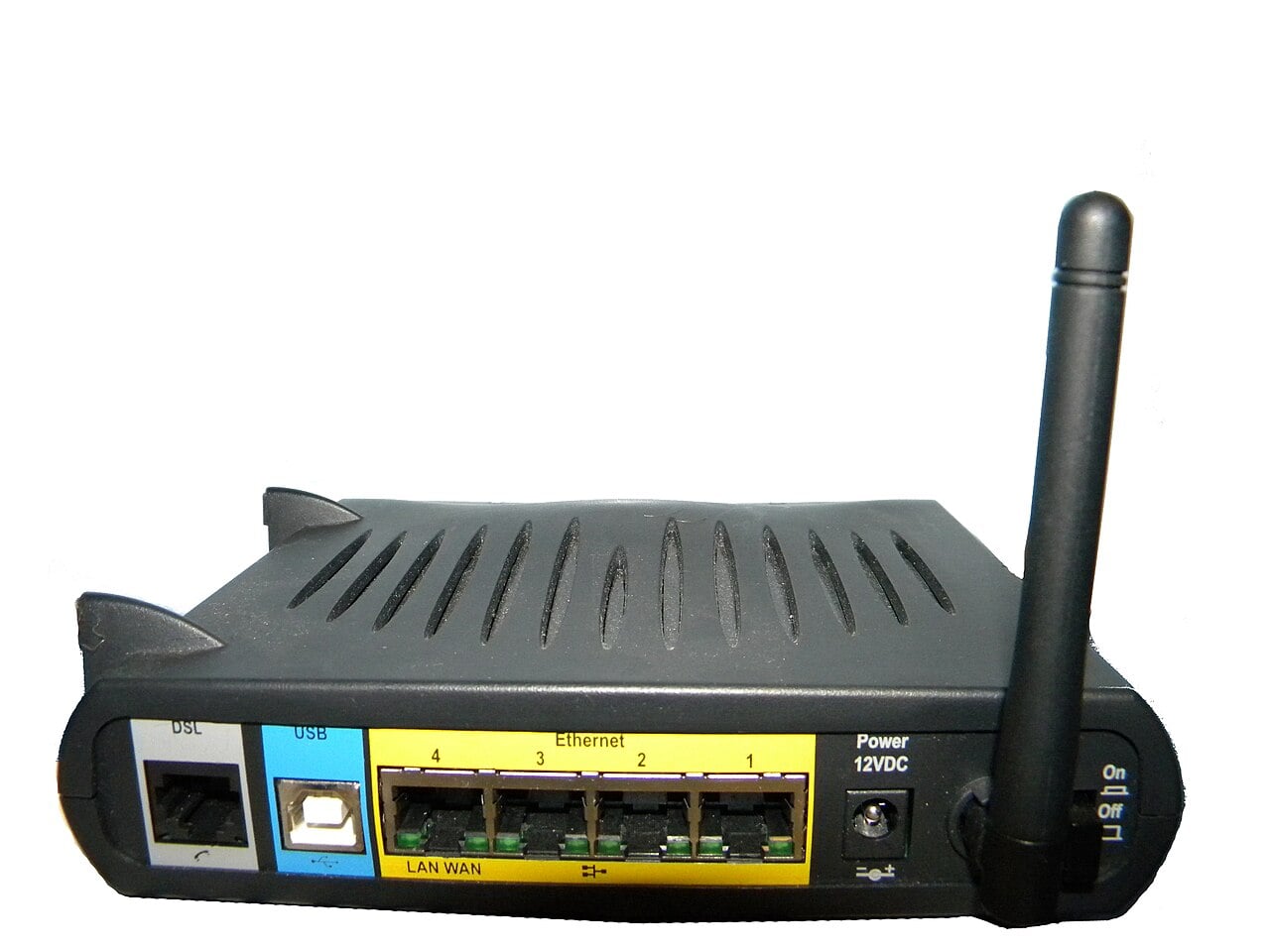
Le périphérique Speedstream 6520 fourni par Bell. Vue d'arrière. via Wikimedia Commons with usage type - Creative Commons LicenseFeatured Image Credit
Le périphérique Speedstream 6520 fourni par Bell. Vue d'arrière. via Wikimedia Commons with usage type - Creative Commons License


