
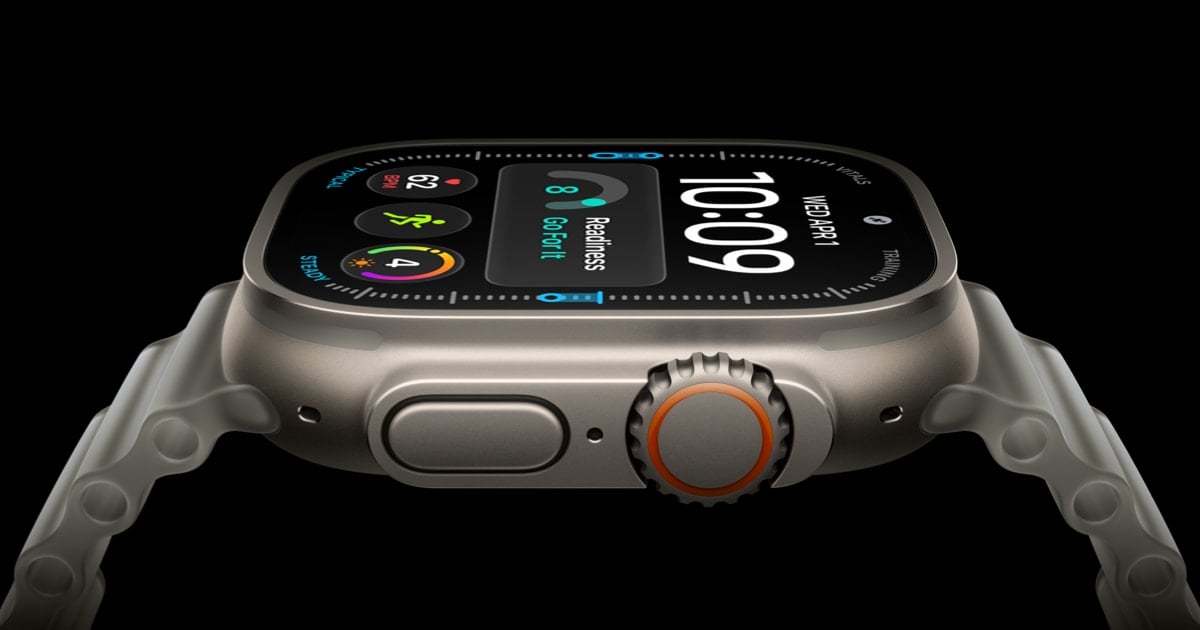
That tiny red dot at the top of an Apple Watch face is easy to mistake for a warning light, but it has a much simpler meaning: one or more notifications are waiting in Notification Center. Apple’s own documentation confirms that the icon appears when an alert has not been read, making the red dot’s meaning and removal a quick settings fix rather than a sign of a hardware problem.
To see what is behind it, start from the watch face and swipe down. If you are inside another app, touch and hold the top edge of the display, wait for Notification Center to appear, and then swipe down. Scroll with a finger or the Digital Crown, then tap an alert to read it or respond. Apple notes that Notification Center cannot be opened directly from the Home Screen, so pressing the Digital Crown to return to the watch face may be necessary first. Apple’s notification guide documents the complete sequence.
There are two ways to clear the backlog. Swipe left on an individual notification and tap the delete button, or scroll to the top of Notification Center and choose Clear All. Reading or dismissing alerts on the watch also dismisses them from the paired iPhone, so clearing the same messages twice should not be necessary.
If the dot is useful but certain apps are noisy, notification controls offer a more precise solution. On the iPhone, open the Apple Watch app, select My Watch, and tap Notifications. Depending on the app, you can allow alerts, send them silently to Notification Center, or turn notifications off altogether. Apple also lets users mirror the iPhone’s notification behavior for supported apps. The company’s iPhone-and-Apple-Watch notification support page explains how those two devices divide incoming alerts.
For anyone who wants notifications without the visual reminder, the red dot itself can be hidden. On the watch, open Settings, tap Notifications, and switch off Notifications Indicator. This does not delete unread alerts or stop apps from delivering them; it only removes the indicator from the watch face. The alerts remain available in Notification Center until they are read or cleared.


