
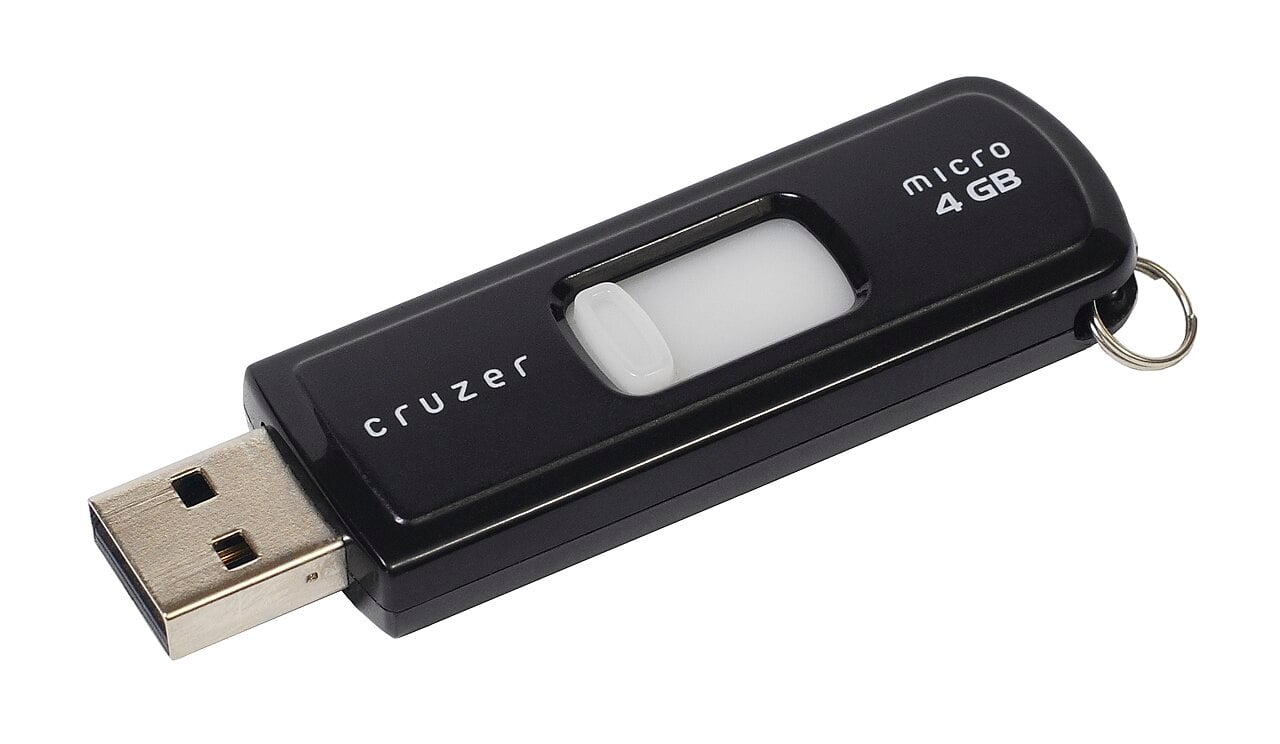
A USB accessory vanishing from a MacBook can look like a serious failure, but the culprit is often much simpler: a bad cable, an underpowered hub, or a connection that never fully seated. Before assuming the Mac itself is broken, work through this practical MacBook USB troubleshooting guide in a methodical order.
Start with the physical connection. Unplug the accessory and reconnect it directly to the MacBook, bypassing any dock, adapter, extension cable, or hub. Try another USB-C port if one is available, then test the accessory with a different cable. This matters because some USB-C cables support charging but carry no data. Apple also recommends checking that the accessory is switched on and that any device with its own power supply is connected to an outlet. Its official troubleshooting guidance specifically advises removing hubs and extension cables while isolating the problem.
Power can be the hidden issue when several peripherals share one hub. Disconnect other accessories and connect the troublesome device straight to the MacBook. If macOS displays “USB Devices Disabled” or says the accessory needs more power, Apple says to try another port, remove the hub from the chain, and connect a self-powered hub to AC power. A compact bus-powered hub may work fine for a mouse but fail with an external hard drive, capture device, or other demanding hardware. Apple’s USB power guidance covers those warnings and the recommended connection tests.
The next question is whether macOS can see the hardware at all. Hold the Option key, open the Apple menu, and choose System Information. Select USB under Hardware to inspect the connected device and the USB bus. If it appears there but not in an app, Finder, or Disk Utility, the connection is probably working at the hardware level and the problem may involve the device’s software, file system, permissions, or compatibility. Apple describes System Information as a way to view the USB device tree and port details, making it a useful dividing line between a connection failure and an operating-system problem.
Install any driver, firmware, or companion software supplied by the accessory maker, and check for available macOS updates. Then restart the MacBook with only the suspect device attached. Testing the accessory on another computer can reveal whether the fault follows the device; testing a known-good accessory on the same MacBook can expose a damaged port or adapter. If one port consistently fails while another works, stop forcing the connection and arrange service rather than risking additional damage. For persistent software conflicts, Apple’s broader peripheral troubleshooting steps include Safe Mode, macOS updates, and Apple Diagnostics.


